Project Configuration
If you are a new user and have not logged in to the console before, start with the guide that matches your use case:
| Use case | What it helps you do |
|---|---|
| Use in Agent | Connect MemOS to your personal Agent through plugins, CLI, or similar integration methods |
| Integrate in Your App | Use the MemOS API / SDK in your application |
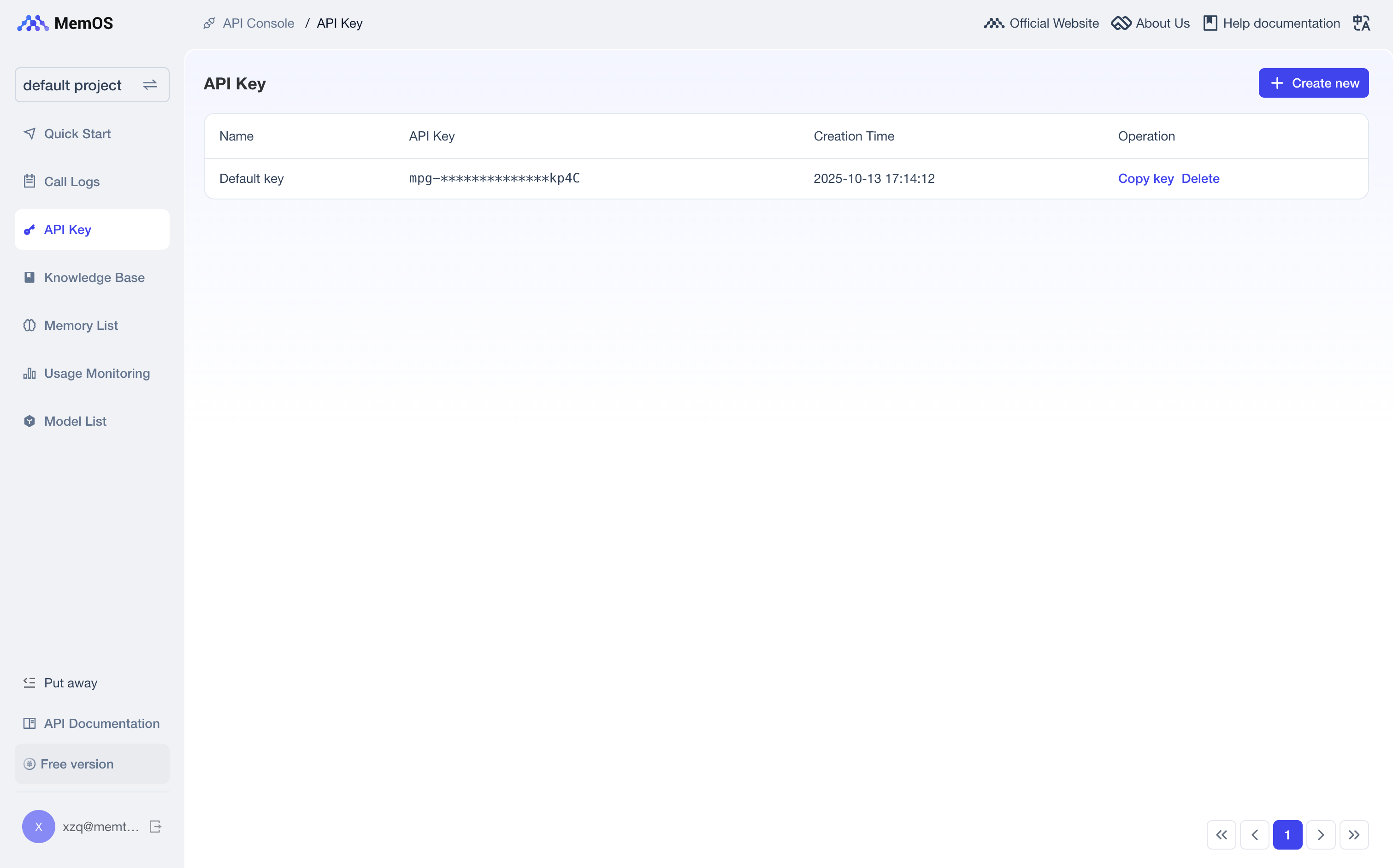
After login, MemOS automatically creates a default project. Copy the API Key, and you can use all features in that project. Continue reading this page if you want to understand:
- How projects and API Keys are related;
- How to create, switch, edit, or delete projects;
- How to use knowledge bases in a project;
- How to troubleshoot configuration errors.
1. Projects and API Keys
A project is the memory isolation space defined by MemOS. Each project has its own API Key for accessing memories, messages, and request logs under that project.
Projects are isolated from each other. An API Key from Project A cannot access resources in Project B.
2. Manage Projects
When you need to isolate different apps, environments, or business spaces, you can create, switch, edit, and delete projects from Projects.
2.1 Create or Switch Projects
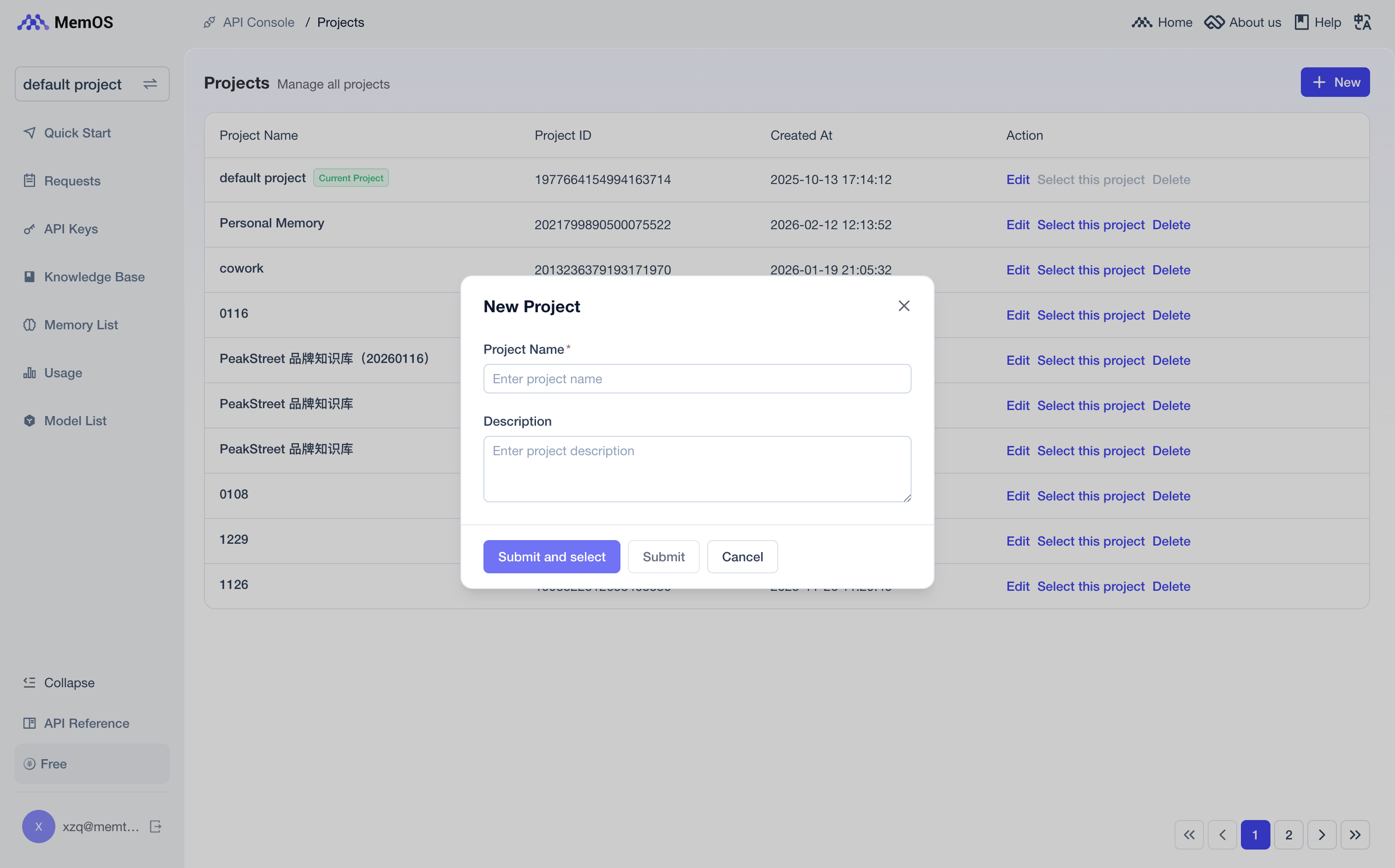
- Click "New" on the Projects page, then enter the project name and description to create a project.
- The project marked as "Current Project" is the project currently selected in the console.
- After clicking "Switch to This Project", API Keys, knowledge bases, and request logs all switch to that project scope.
2.2 Delete a Project
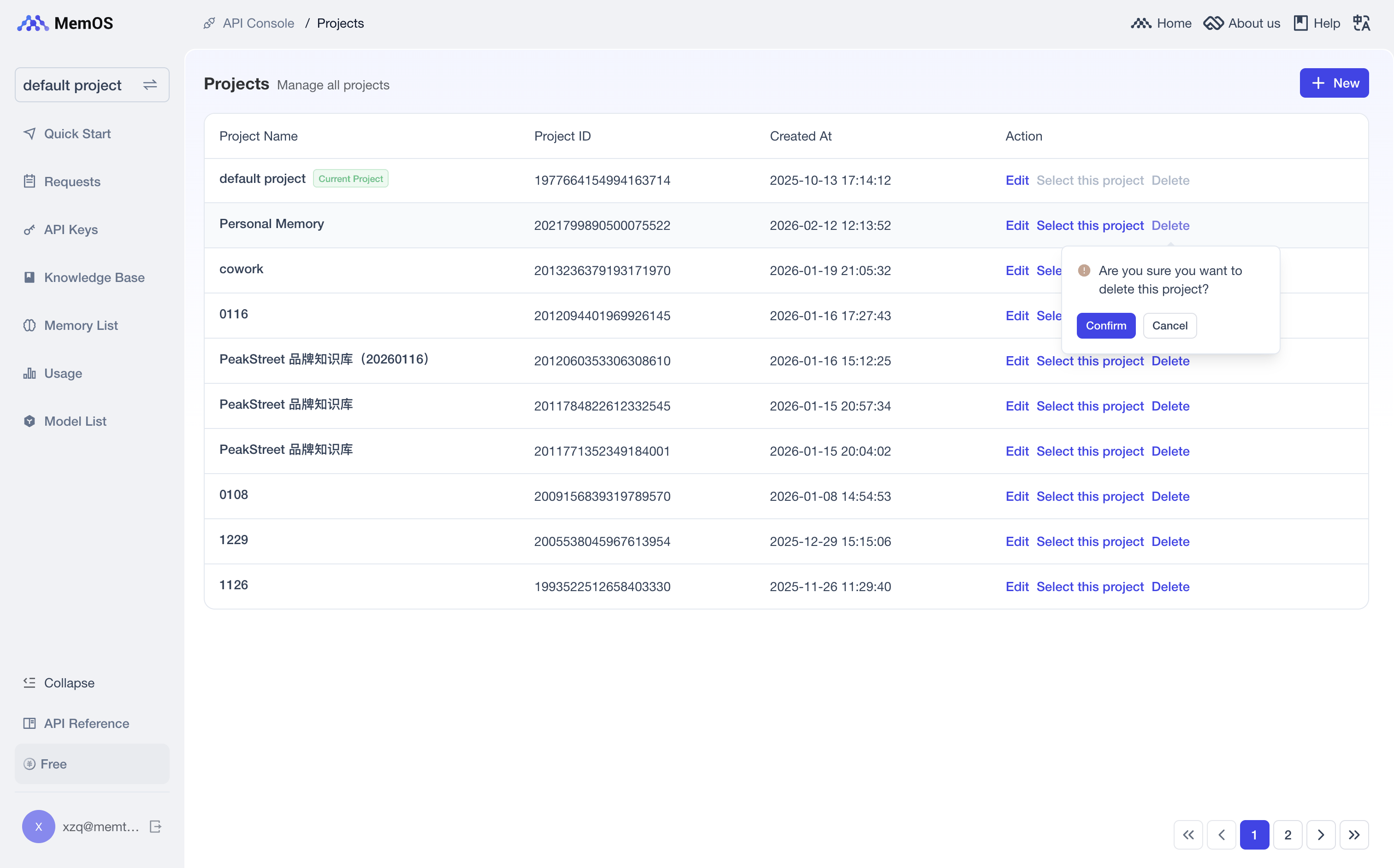
- The current project cannot be deleted directly. Switch to another project first.
- Deleting a project clears its memories, messages, knowledge base associations, API Keys, and related data.
- Deletion is irreversible. Only delete test projects or deprecated projects that you no longer need.
3. Associate Knowledge Bases with a Project
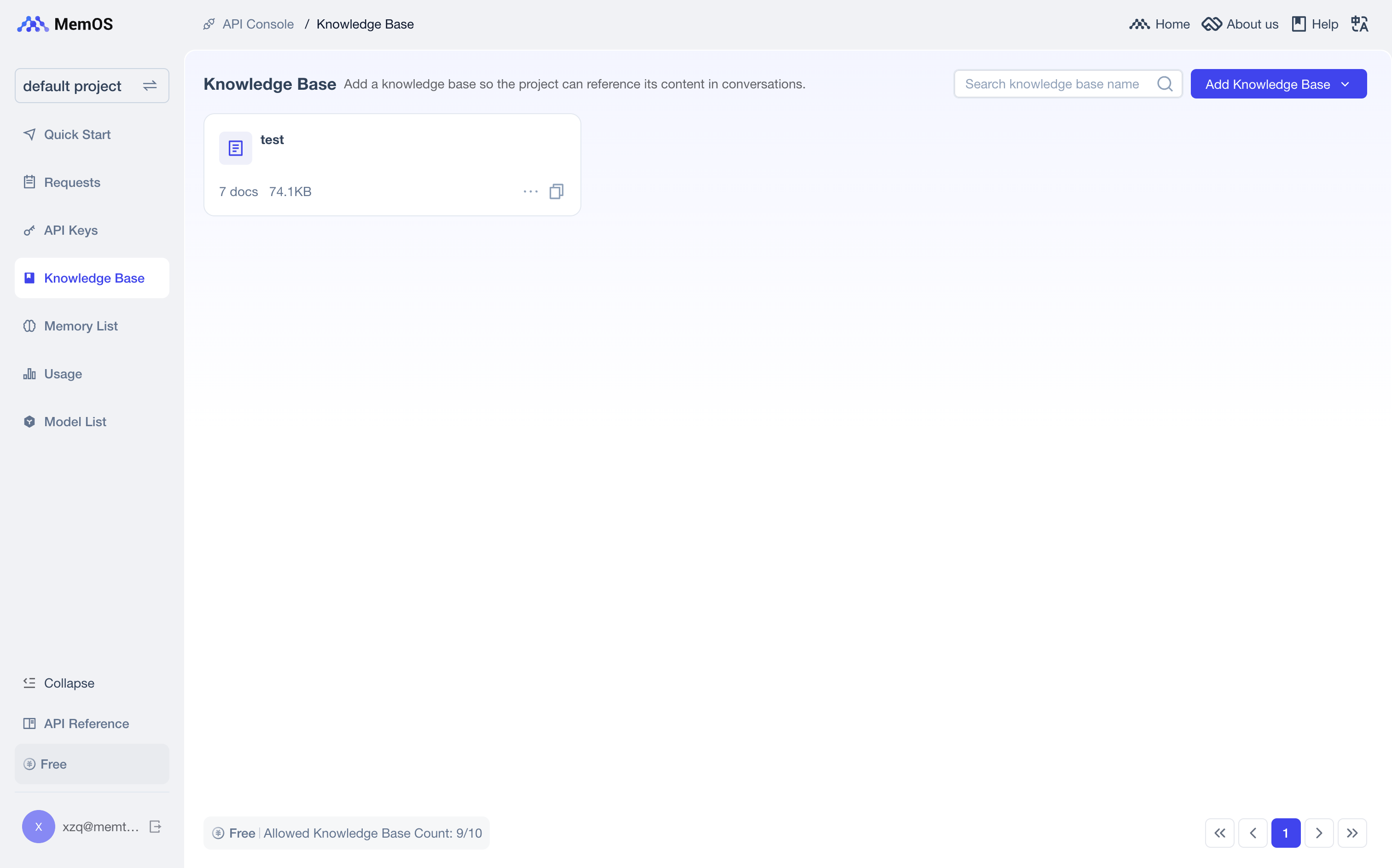
If your app / Agent needs to refer to fixed documents, create and associate a knowledge base with the project. A project can associate with multiple knowledge bases, and one knowledge base can also associate with multiple projects. On the Knowledge Base page:
- Click "Add Knowledge Base";
- Choose "Create Knowledge Base" or "Associate Existing Knowledge Base";
- Open the knowledge base detail page, upload documents, and wait for processing to complete;
- When calling
search/memoryorchat, passknowledgebase_idsto specify which knowledge bases can be searched in this request.
knowledgebase_ids is not associated with the project of the current API Key, search/memory returns 50123. Before using a knowledge base, associate it with the target project.For the full workflow, see Knowledge Base.
4. Common Configuration Errors
| Error code | Common cause | How to fix |
|---|---|---|
40000 | Request field names, types, or structure do not match the API requirements | Check the JSON fields against the API docs; do not mix objects, arrays, and strings incorrectly |
40002 | Required field is empty | Check required fields such as user_id, messages, query, and conversation_id |
40011 | conversation_id is too long | Use a short ID, such as an order ID, conversation ID, or internal trace ID. Do not put the full conversation in conversation_id |
40103 / 40132 | API Key is invalid, expired, or cannot access the current project | Check whether the API Key is complete, valid, and belongs to the current project |
40300 / 40304 | API request quota or account-level request quota is exhausted | See Quotas and Limits, or check the current quota in the console |
40305 | Single request input exceeds the token limit | Shorten the write, search, or upload content; do not send long conversation history or long documents in one request |
50123 | Knowledge base is not associated with the current project | Associate the knowledge base with the project on the Knowledge Base page, or remove the incorrect knowledgebase_ids |
For more error code details, see Error Codes.